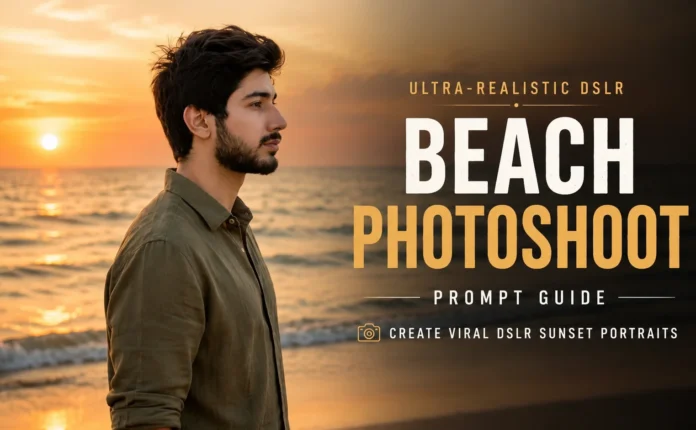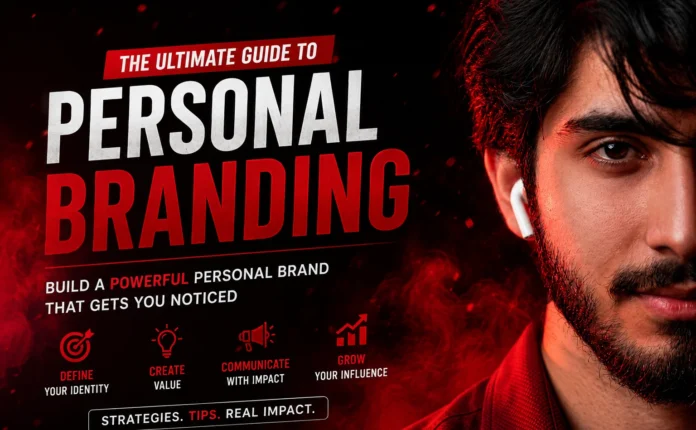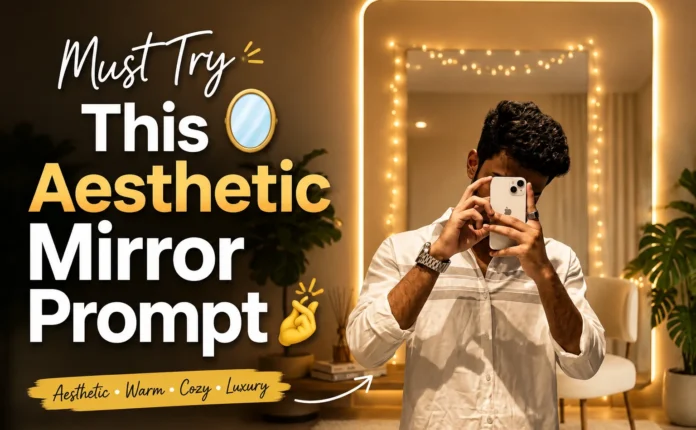
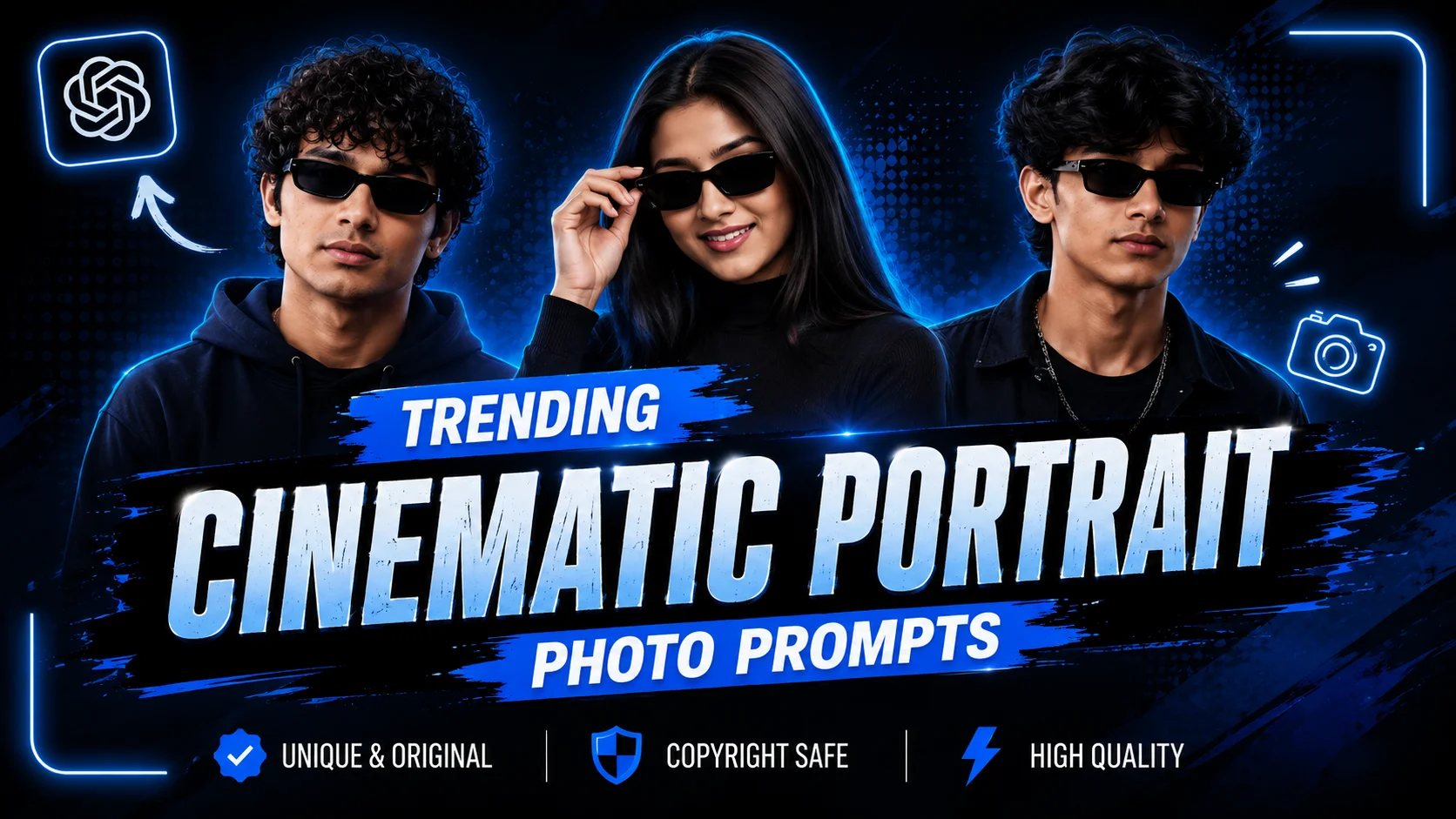
Have you noticed those ultra-realistic AI-generated photos trending all over Instagram lately? These photos are getting thousands, even millions, of likes because they look professional, cinematic, and incredibly realistic.
I previously shared a tutorial on creating these AI photos using ChatGPT, but many people had one common issue: the face in the generated image didn’t perfectly match their real face. It looked similar, but not accurate enough.
In this guide, I’ll show you exactly how to create a trending AI photo and then use a face-swapping method to make it look completely realistic. Make sure you follow every step carefully from start to finish.
Why AI Instagram Photos Are Trending
AI-generated images have become one of the hottest trends on Instagram. Creators are using AI tools to generate:
- Cinematic portraits
- Luxury lifestyle photos
- Golden aesthetic images
- Professional-looking profile pictures
- Viral social media content
With tools like ChatGPT and AI face-swapping websites, anyone can create stunning visuals without advanced editing skills.
Step 1: Download the ChatGPT App
First, download the official ChatGPT app from the Google Play Store.
You can also access ChatGPT through the official website:
After installing the app, open it on your smartphone.
Step 2: Upload Your Photo
Once ChatGPT is open:
- Tap the Plus (+) icon.
- Select Photos.
- Upload a clear photo of yourself.
Make sure the photo is high quality and your face is clearly visible. Better input images usually produce better AI-generated results.
Step 3: Add the AI Prompt
Now you need to paste a special prompt that tells ChatGPT what kind of image to create.
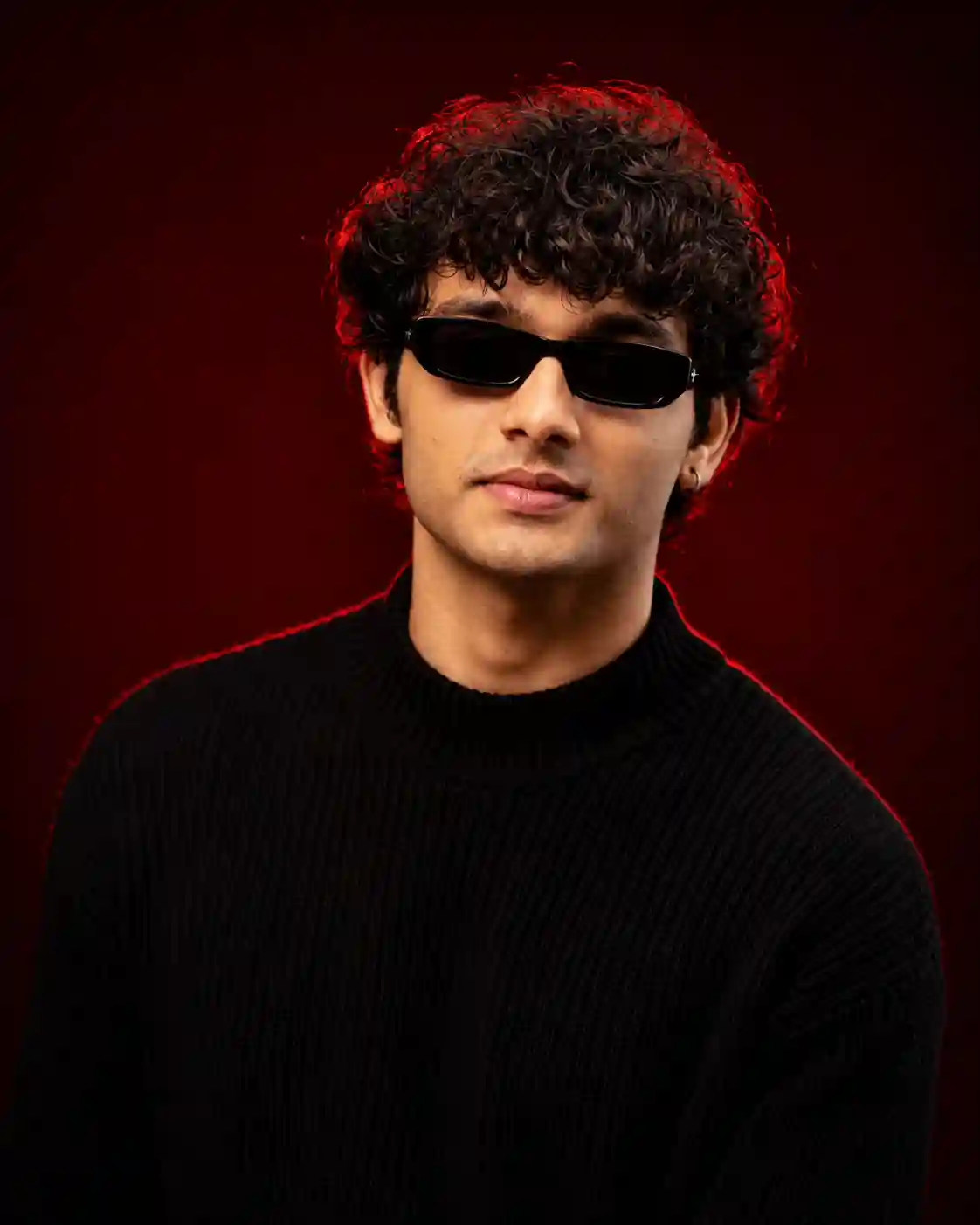
Use the uploaded image as the exact identity reference. STRICT IDENTITY: Keep 100% same face, skin tone, hairstyle, age, and all facial details. No changes at all — full identity lock. OUTFIT: Black premium ribbed sweater, sleek black rectangular sunglasses, small silver hoop earring, clean luxury styling. POSE: Head slightly down, face turned a bit sideways, soft confident smile, looking just past camera, relaxed but powerful vibe. SCENE: Minimal luxury studio setup with deep crimson red gradient background, rich cinematic dark red tones. LIGHTING: Soft beauty light on face with strong red rim light on hair and shoulders, high contrast shadows, cinematic feel. CAMERA: Chest-up shot, 85mm lens, shallow depth of field, ultra sharp focus, DSLR quality. STYLE: High-end men’s fashion editorial, Instagram viral look, ultra-realistic, magazine cover style, cinematic luxury mood. QUALITY: 8K photorealistic, natural skin texture, highly detailed, professional retouch. ASPECT RATIO: 4:5
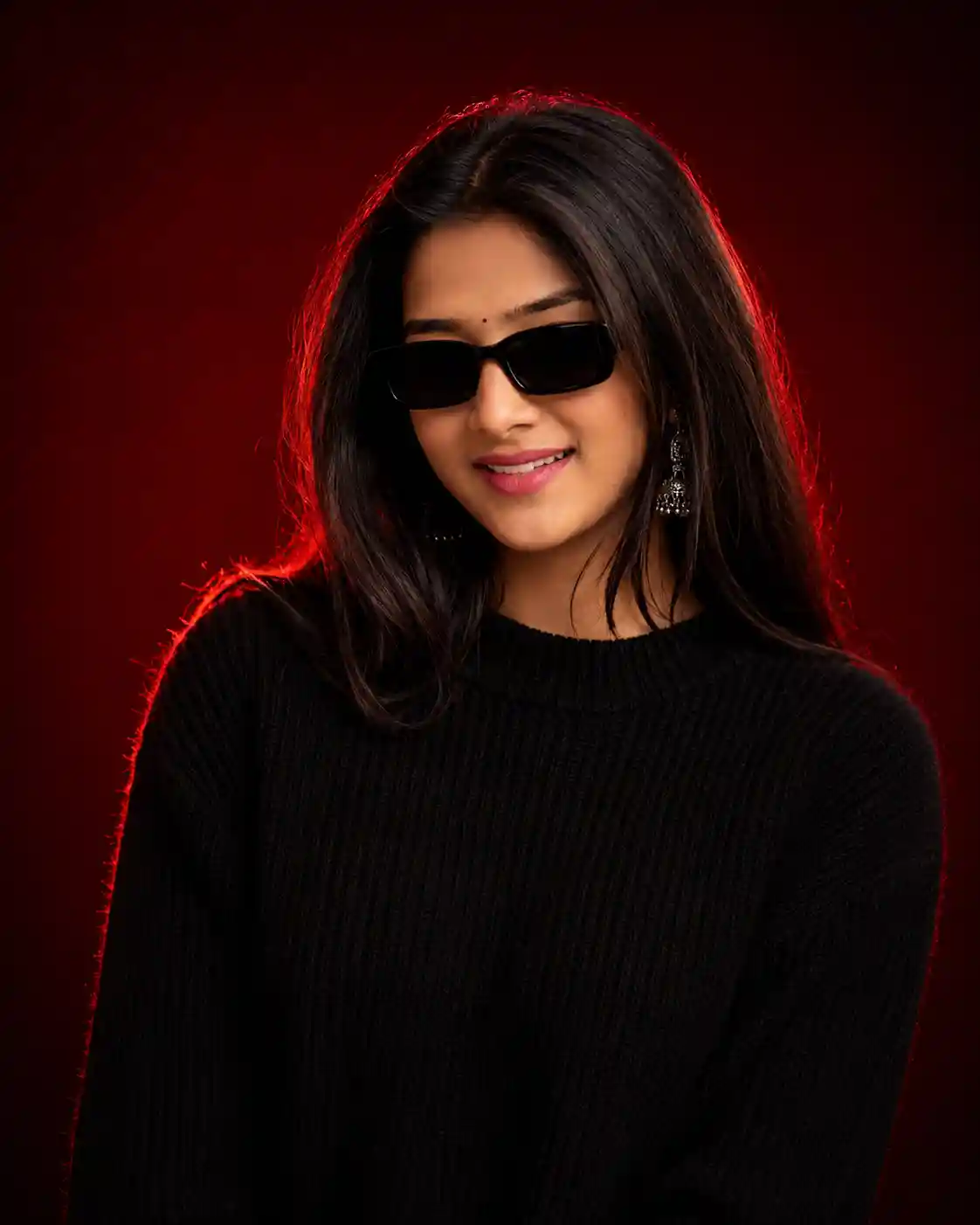
Use the uploaded image as the identity reference. STRICT IDENTITY: Maintain exact face, skin tone, hairstyle, beard, age, and all natural features — no changes allowed. OUTFIT: Premium black ribbed knit sweater, sleek black rectangular sunglasses, small silver hoop earring. POSE: Head slightly lowered, face turned a bit sideways, subtle confident smile, looking past the camera. SCENE: Clean luxury studio portrait with deep crimson red gradient background and dark cinematic tones. LIGHTING: Soft beauty light on face with strong red rim light on hair and shoulders, high contrast, cinematic shadows. CAMERA: Chest-up shot, 85mm lens, shallow depth of field, sharp detailed focus. STYLE: Luxury men’s fashion editorial, ultra-realistic Instagram portrait, DSLR quality, premium grading, magazine cover look. ASPECT RATIO: 4:5
The prompt used in the video can usually be found in the creator’s description section. If you’re following a similar tutorial, copy the prompt and paste it into ChatGPT.
How to Copy Text from a Screenshot
If the prompt is provided as an image:
- Take a screenshot.
- Open Google Chrome.
- Use Google Lens.
- Upload the screenshot.
- Select Text.
- Copy the extracted text.
- Paste it into ChatGPT.
Once the prompt and your image are uploaded, tap the send button.
Step 4: Generate Your AI Image
ChatGPT will start generating your image.
The process usually takes around 1 minute, depending on server load and image complexity.
After the generation is complete, download the AI-generated photo to your device.
At this stage, the image may look amazing, but your face might not be an exact match.
That’s where the next step comes in.
Step 5: Make the Face Look 100% Realistic
To perfectly match your face with the AI-generated image, you’ll need to use a face-swapping tool.
Open Google Chrome and search for:
MioCreate Face Swap
Official Website:
https://www.miocreate.com
This free AI tool allows you to swap faces quickly and accurately.
Step 6: Upload the AI Photo
On the MioCreate website:
- Select Free Face Swap.
- Upload the AI-generated image you created with ChatGPT.
- Wait for the image to upload completely.
Step 7: Upload Your Original Face Photo
Now upload a clear photo of your real face.
This image will be used as the source face for the swap.
For best results:
- Use a front-facing photo.
- Ensure good lighting.
- Avoid sunglasses or face coverings.
Step 8: Start the Face Swap
After both images are uploaded:
- Click Swap Face Now.
- Wait approximately 30–40 seconds.
The AI will process both images and replace the generated face with your real face.
Step 9: Download the Final Image
Once the processing is complete:
- Click the Download button.
- Save the final image to your device.
You should now have a highly realistic AI-generated photo with your actual face perfectly integrated into the image.
Tips for Better Results
To achieve the best-looking AI photos:
Use High-Quality Photos
The clearer your original image, the better the final result.
Choose Good Prompts
Detailed prompts produce more realistic and cinematic images.
Maintain Similar Angles
Try to use face photos with angles that match the generated image.
Experiment with Styles
You can create:
- Golden aesthetic portraits
- Luxury lifestyle photos
- Sports-themed images
- Professional headshots
- Instagram influencer-style pictures
Useful AI Resources
Here are some helpful tools you can use:
- ChatGPT: https://chatgpt.com
- MioCreate Face Swap: https://www.miocreate.com
- Google Lens: https://lens.google
- Canva AI Tools: https://www.canva.com
- Adobe Express AI: https://www.adobe.com/express
Final Thoughts
That’s it! By combining ChatGPT image generation with AI face swapping, you can create realistic Instagram photos that look professionally edited.
If you follow all the steps carefully, your final image will closely match your real appearance while maintaining the viral aesthetic style that’s currently trending on Instagram.
Try different prompts, experiment with various styles, and create unique content that stands out on social media.
If this guide helped you, don’t forget to share it with friends who want to create viral AI photos for Instagram.

📢 Join Our WhatsApp Channel
Get daily AI photo editing prompts, tools, and tips directly on your phone.
Join Now on WhatsApp 🚀