How to Create Viral Truck Body Following Reels on Instagram Using AI (One-Click Method)
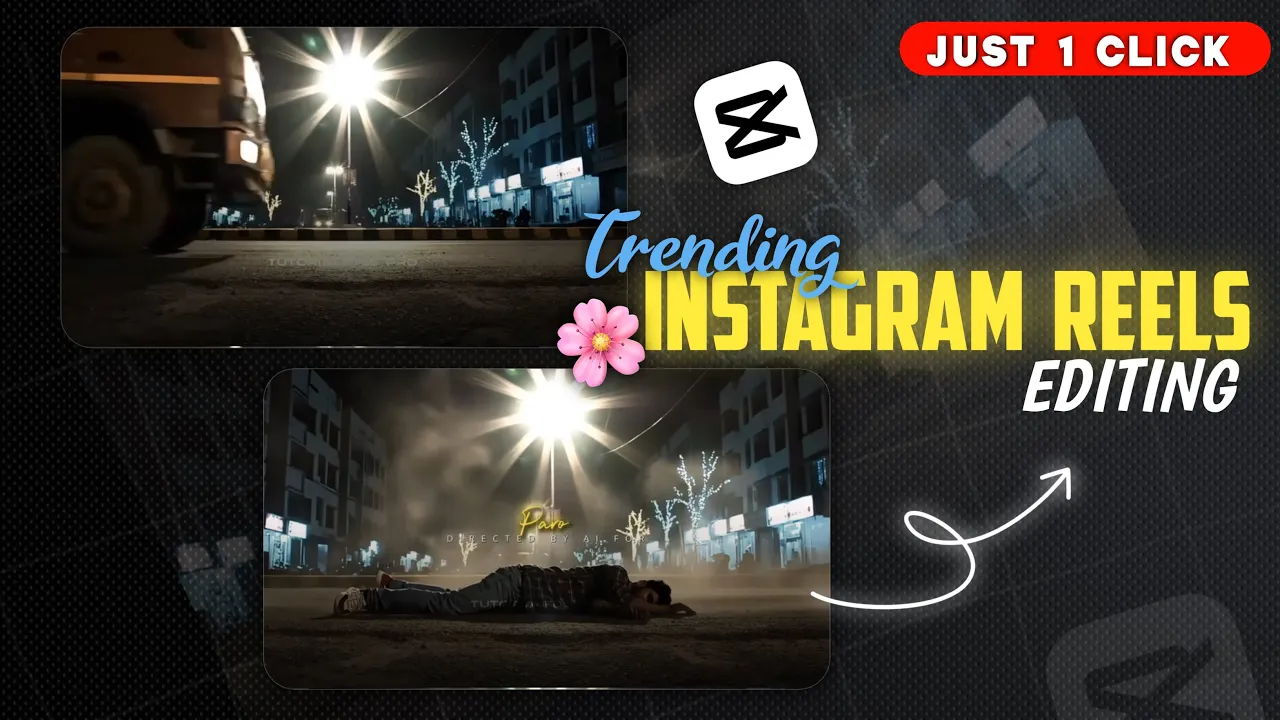
Guys, these days truck body following reels are going extremely viral on Instagram. You might have already seen reels where a still image smoothly converts into a moving cinematic video that looks super professional. The good news is—you can create this type of reel in just one click using a simple AI trick.
Make sure you read this guide till the end because I’m going to explain everything in a very easy way. So without wasting any more time, let’s start the editing process.
Step 1: Open Chrome and Search for the AI Tool
First of all, open the Chrome browser on your mobile or PC. After opening Chrome, go to the search bar and type:
Fo AI
Once the search results appear, click on the first website. After clicking, you will see an interface similar to a professional AI dashboard.
You can explore more about AI-based video tools from this resource:
Best AI Video Generators – TechRadar
Step 2: Create a New AI Video Project
Now, click on the option called “Create with Flow”. After that, you will be asked to log in. You can log in using any email ID—Google login works perfectly.
Once you are logged in successfully:
- Click on New Project
- Select Text to Video
- Now choose the third option: Gradient to Video
This feature is currently trending because it converts images into smooth motion videos automatically.
Step 3: Upload and Crop Your Photo
After selecting Gradient to Video, click on the plus (+) icon and then tap on Upload.
Now upload the photo that you want to convert into a video. Once the photo is uploaded:
- Crop the image properly
- Select the aspect ratio you want
Pro Tip: Currently, YouTube size (16:9) videos are getting massive reach on Instagram as well. So simply save your photo in YouTube size for better results.
Step 4: Paste the AI Prompt
After saving the cropped image, your photo will be uploaded successfully. Now comes the most important part—converting the photo into a video.
Nighttime cinematic scene filmed from a fixed extreme low-angle SIDE VIEW camera placed directly on an Indian asphalt road. The camera is positioned perpendicular to the road, capturing only left-to-right movement. Strictly side profile view only. No front-facing, angled, or head-on shots. The camera does not move.
A quiet forest-edge Indian road at night. The road surface shows rough asphalt texture, dust, cracks, faint tire marks, and scattered dry leaves. Behind the road is a wooded area with tall trees and dense foliage, appearing as dark vertical silhouettes. A single harsh white Indian streetlight near the trees illuminates the scene, producing strong starburst lens flares and long horizontal shadows. Cold night tones dominate. Light haze and dust particles are visible in the streetlight beam. The background remains dim and natural, with only faint distant glows filtering through the trees.
A large Indian commercial truck (Tata / Ashok Leyland style), dull brown-orange with yellow reflective strips, moves from left to right across the frame in strict side profile. The wheels show realistic motion blur. The suspension visibly reacts to the uneven road. Dust, dry leaves, and displaced air move horizontally only in the truck’s direction. No slow motion, no stylization, no camera pan or rotation.
As the truck passes the center of the frame, a human figure from the reference image loses balance near the rear side of the truck. The motion is implied and natural, not sudden or artificial. The body enters the frame already in motion, carried forward by the truck’s momentum. Gravity pulls the figure straight downward, with the torso aligned in the direction of travel. There is no spinning, no twisting, no floating, and no exaggerated limb movement. The fall follows realistic human biomechanics and continuous momentum.
Contact with the road is suggested through dust impact, friction, and body positioning, not explicit detail. The body transitions smoothly into a short forward slide, remaining in contact with the ground at all times. The slide slows naturally and evenly, with no bouncing, rolling, or secondary impacts.
The figure comes to rest matching the reference image exactly: face-down, fully stretched out, dark clothing with subtle red accents, the entire body visible in strict side profile only. Limbs settle naturally and remain still. Dust and dry leaves slowly settle around the body.
The truck continues forward and exits the frame to the right. The camera holds on the motionless figure beneath the harsh streetlight. Tree silhouettes stand silently in the background. Cold night air, gritty realism, grounded Indian forest-road atmosphere. Cinematic, restrained, and physically believable.
Generate Video
For this, you need to paste a special AI prompt. The prompt helps the AI understand how to animate your image smoothly.
You can get this ready-made prompt from our WhatsApp channel. Just copy the prompt from there and paste it into the prompt box.
If you want to learn more about how AI prompts work, check this guide:
Beginner’s Guide to AI Prompts – Zapier
Step 5: Generate and Download the Video
After pasting the prompt, simply click on the Send icon.
Now wait for a few seconds. Your photo will first appear as a preview and then automatically convert into a video. And boom—your AI-generated viral video is ready.
To save the video:
- Click on the Download icon
- Your video will be saved to your device in high quality
You can now upload this video directly on Instagram Reels or YouTube Shorts.
Why This AI Reel Is Going Viral?
- Eye-catching motion effect
- Professional cinematic look
- Very easy one-click process
- Perfect for Instagram Reels and Shorts
If you want to understand Instagram’s reel algorithm better, this article will help:
How Instagram Reels Algorithm Works – Later
Final Words
I hope you liked this easy AI video editing trick. With this method, you can create viral truck body following reels without any advanced editing skills.
That’s all for today. We’ll meet again in the next tutorial with another amazing AI editing trick. Till then, keep creating and keep growing 🚀

📢 Join Our WhatsApp Channel
Get daily AI photo editing prompts, tools, and tips directly on your phone.
Join Now on WhatsApp 🚀