Happy New Year 2026 AI Photo Editing Using Gemini AI (One-Click Method)
Hello guys, how are you all? As you already know, the New Year is coming very soon, so first of all, many many Happy New Year wishes to everyone! 🎉
In today’s article, I’m going to show you how you can use Gemini AI to upload your selfie and create a stunning Happy New Year 2026 photo edit in just one click. Guys, the editing technique I’m sharing today is something you won’t find anywhere else on YouTube.
If you also want to learn this kind of AI New Year photo editing using just one click, then I strongly request you not to skip any part. If you skip even a little, you won’t understand the process properly and won’t be able to edit your photo.
So without wasting time, let’s get started.
Step 1: Open Gemini AI App
Guys, we are going to do this photo editing inside Gemini AI. First of all, open the Gemini app. If you don’t have it, you can download it for free from the Play Store.
After opening the app, click on the login option and sign in using your Google account. Once logged in, you’ll see the Adjust option. Click on it, then select Create Image.
Next, click on the Plus (+) icon, choose the Gallery option, and select your selfie photo. Make sure to choose a photo where your face is clearly visible, because only then will the AI match your face 100% accurately.
After selecting the photo, click on Done.
Step 2: Use the AI Prompt
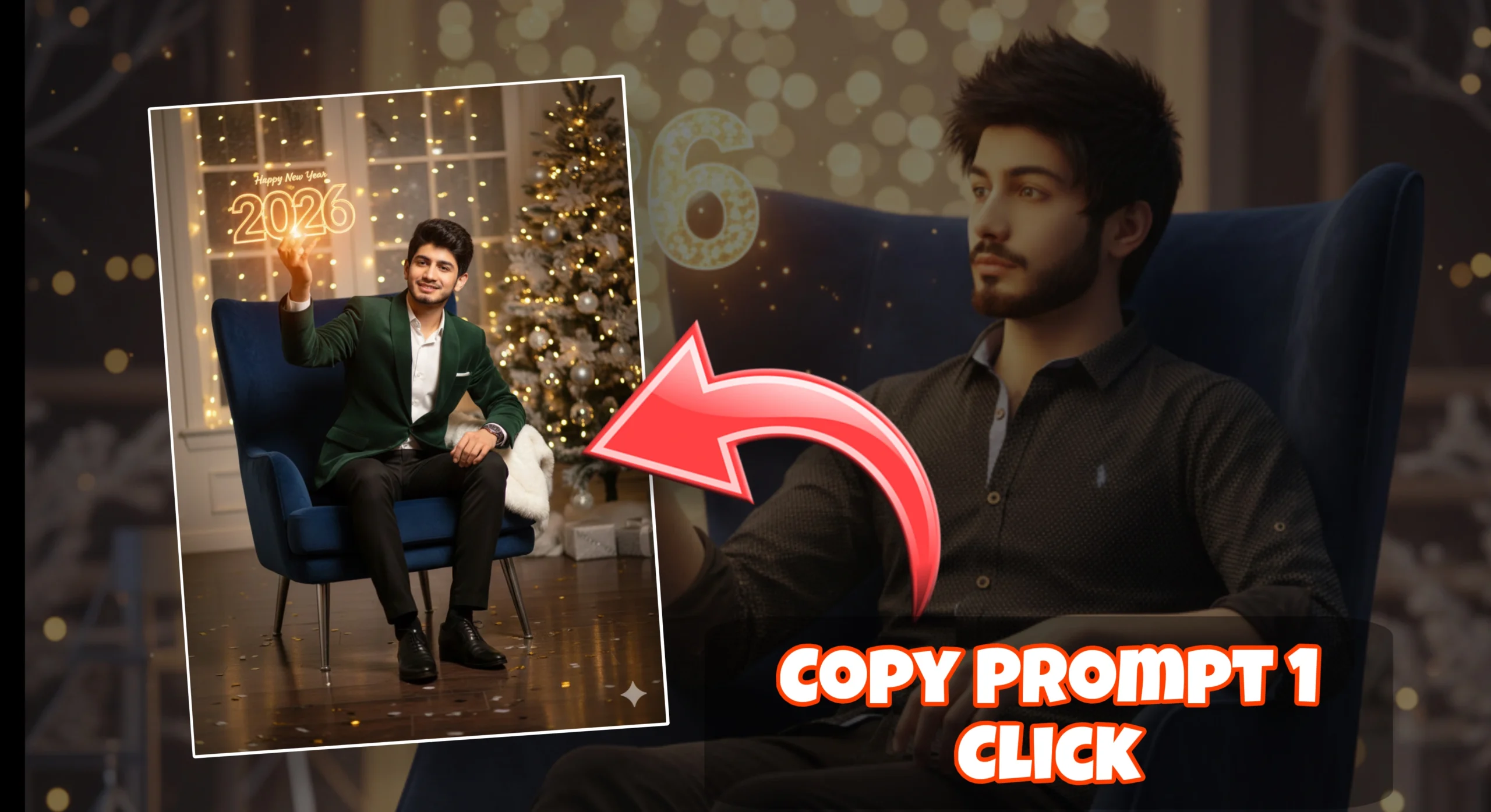
Now you need to enter a prompt to generate the image. For the prompt, open my Telegram channel (link is given in the video description). There you will find three different prompts.

Create an ultra-aesthetic, highly realistic full-body portrait of a young male model celebrating “Happy New Year 2026” in a luxurious indoor winter-themed setting, sitting casually on a modern sleek armchair with softly blurred golden fairy lights in the background, subtle ambient reflections on polished floor, tiny shimmering confetti scattered around, and delicate soft glow from ambient lighting. The model’s hand is elegantly holding a glowing 3D “2026” text above his hand, casting warm
Copy the prompt of the photo style you want, then come back to the Gemini app and paste the prompt. After pasting, click on the Send button.
Now wait for about 10–15 seconds. Your Happy New Year 2026 image will be generated in just one click, and your face will remain completely original.
Once the image is ready, tap on it and click on Save to store it in your gallery.
Official Gemini AI: https://ai.google.dev/
Step 3: Remove Background Using PhotoRoom
Now we need to remove the background of the photo. For that, open the PhotoRoom app. It’s also available for free on the Play Store.
Open PhotoRoom and click on Start from Photo. Select the same image that you edited using Gemini AI. The background will be removed automatically in just one click.
Select the Transparent option and then click on Export to save the PNG image.
PhotoRoom Official: https://www.photoroom.com/
Step 4: Happy New Year 2026 Editing in PicsArt
Now open the PicsArt app (free on Play Store). Click on the Plus (+) icon and choose Edit Photo. Select the New Year background (download link is provided in the description).
Once the background is opened, click on Add Photo and select the PNG image whose background we removed earlier.
Zoom and adjust the photo properly, keeping it centered. After that, again click on Add Photo and add the shadow PNG file.
Place the shadow near the feet, open the Layers option, and click on Move Down so the shadow goes behind the subject.
Duplicate the shadow and place it near the other foot. Again, move it down in the layer panel.
Now the photo already looks amazing, but the quality is still low.
PicsArt Official: https://picsart.com/
Step 5: Enhance Image Quality Using Remini
Save the edited photo from PicsArt. Now open the Remini app and select the photo you want to enhance.
Click on the Enhance option and wait for a few seconds. Your photo will be converted into Full HD high quality.
You’ll clearly see the before and after difference — the face becomes sharp and crystal clear.
If you notice that the “Happy New Year” text is blurred, click on the Background Blur option and set it to Disabled.
Remini Official: https://www.remini.ai/
Step 6: Final Light Adjustment in Lightroom
Save the enhanced image again and open the Lightroom app. Click on the Plus (+) icon and select your enhanced photo.
Now apply the preset (preset download link is given in the description). After applying, click on the three dots and select Copy Settings. Make sure the Masking option is checked.
Then paste the settings onto your photo. You can also do manual adjustments if you want.
Finally, click on Share and choose Save to Device to export the image in full HD quality.
Adobe Lightroom Official: https://www.adobe.com/products/photoshop-lightroom.html
Final Words
Guys, as you can see, your Happy New Year 2026 AI photo is now ready in full HD quality using Gemini AI and free apps.
I hope you liked this tutorial. If you did, don’t forget to like the video and subscribe to the channel.
We’ll meet again in the next video. Till then, bye and take care! ❤️

📢 Join Our WhatsApp Channel
Get daily AI photo editing prompts, tools, and tips directly on your phone.
Join Now on WhatsApp 🚀