How to Recreate Akshay Khanna’s Viral Look Using Google Gemini AI
If you’ve been scrolling through Instagram lately, you’ve definitely seen people posting those viral Akshay Khanna-inspired AI photos. The best part? You don’t even need an iPhone or professional editing skills to create this look. In today’s guide, I’ll show you exactly how to recreate this trending effect using Google Gemini’s image creation tool.
This tutorial is super easy—just follow the steps till the end.
Step 1: Open Google Gemini
The first thing you need to do is open your browser—Google Chrome or any browser you prefer. In the search bar, simply type:
“Google Gemini”
Click on the first official result. You’ll see the Google Gemini homepage open with a clean interface. If you want direct access later, here’s an official link:
Google Gemini – Official Website
Step 2: Open the “Create Image” Tool
Once the Gemini interface loads, look for the Create Image option. Click on it.
Now scroll down and click on the “+” upload icon. This will open your file manager. Select a clear photo where your face is fully visible. The better the clarity, the better the AI output.
Upload your photo and wait a few seconds.
Step 3: Paste Your Prompt
After uploading your image, you need to paste a special AI prompt that generates the Akshay Khanna-style effect.

Where do you get this prompt?
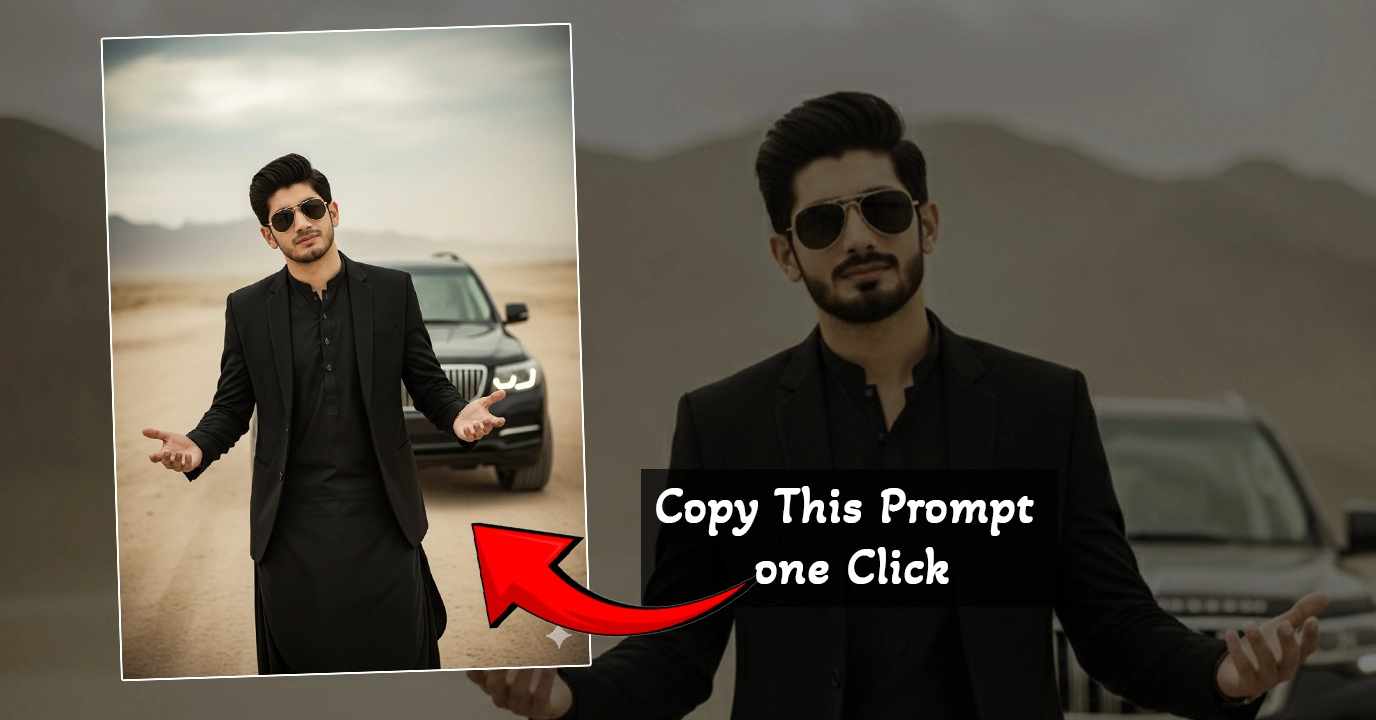
A charismatic, young man with dark,slicked-black hair and gold-rimmed aviator sunglasses. He is wearing a stylish black suit jacket over a black traditional tunic (shalwar kameez). He has a slightly smirking or confident expression and is gesturing outwards with both open palms in a ‘what can you do? pose. He is standing in a dusty, desolate desert or mountainous terrain. luxury SUV is parked behind him. The background is dusty with soft cloudy skies and muted beige tones. Cinematic lighting, shallow depth of field, realistic photography, 4K ultra-detailed, moody Bollywood movie scene, dramatic atmosphere, professional color grading. Preserve Face 100%, I want 100% same face as in the reference image no alteration
I’ll show you in the next step. For now, paste the prompt into the chat box once you have it and hit Send. Wait a little while Gemini processes it.
As soon as the output appears, you’ll see your transformed photo—usually with sharp details, cinematic lighting, and the signature Akshay Khanna-style look.
Click the Download icon to save it to your gallery.
Step 4: Get the Exact Prompt
Now let’s find the AI prompt used to recreate this popular look.
Go back to Google and search:
“AI Photo Editing C S Edit”
Click on the first website that appears (usually the official blog). If you don’t find the prompt instantly, simply type:
“Dhurrandhar”
in the search box of the website.
You’ll find the exact post containing the prompt. Here’s a useful external resource for AI photo prompts:
Once the article opens, scroll slightly upward. You’ll see the prompt displayed clearly. Just copy it.
Now go back to Google Gemini and paste it exactly as it is. Hit Send.
That’s it—your Akshay Khanna-style AI photo is ready!
Final Words
By following these simple steps, you can recreate the trending Akshay Khanna look using Google Gemini AI in just a few minutes. No expensive apps, no complicated editing—just a quick AI trick.
If you enjoyed this tutorial, don’t forget to:
- 👍 Like the video
- 📌 Subscribe to the channel for more tutorials
- 📸 Follow on Instagram for updates
Keep experimenting with AI photo editing—the possibilities are endless!

📢 Join Our WhatsApp Channel
Get daily AI photo editing prompts, tools, and tips directly on your phone.
Join Now on WhatsApp 🚀