How to Create Trendy Stylish Photos Using Je App & Remini (Step-by-Step Guide)
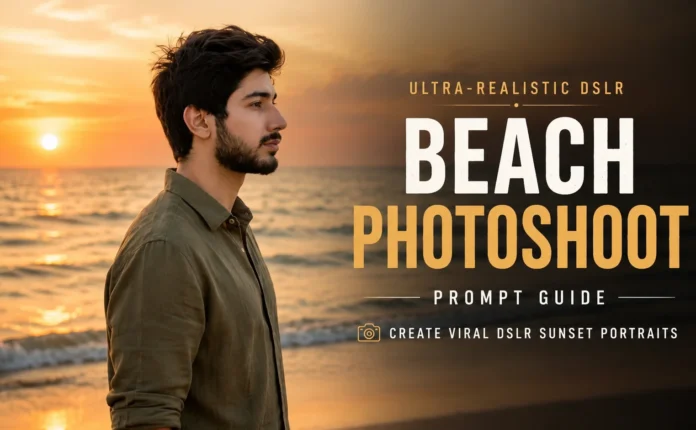
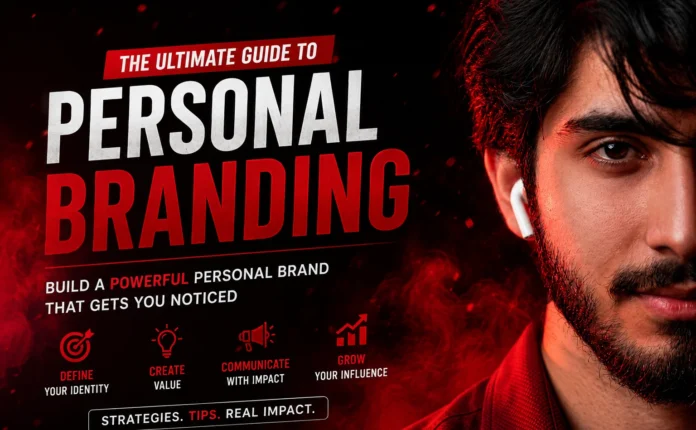
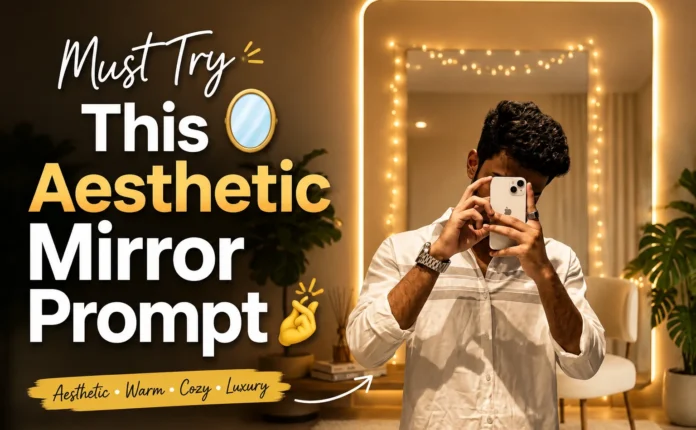
Hey guys, welcome back to the blog! In today’s post, I’m going to show you how I created these stunning and trendy AI-edited photos that you just saw. These edits are currently going viral everywhere — Instagram, Facebook, TikTok — and today you’ll learn how to make them in just a few clicks.
If you’re new here, make sure to like and subscribe to the YouTube channel for more editing tutorials and AI tips!
Step 1: Install the Required Apps
To create these stylish edits, you need two simple apps from the Play Store:
- Je App – This is the main app where you’ll generate AI-styled photos.
- Remini – This app helps you enhance and beautify your photos after editing.
I already have both apps installed, and trust me, these two work perfectly together for high-quality AI edits.
Step 2: Open Je App & Start Creating Your Photo
Once you open the Je app, you will see a clean and simple interface. Here’s what to do:
- Tap on the Plus (+) icon.
- Select Gallery.
- Choose the photo you want to edit.
I selected my first picture, and then clicked on Done.
Add Your Prompt
Now you need to paste the photo prompt. The prompt will be provided in the video description, and you can paste it directly inside the Je app.

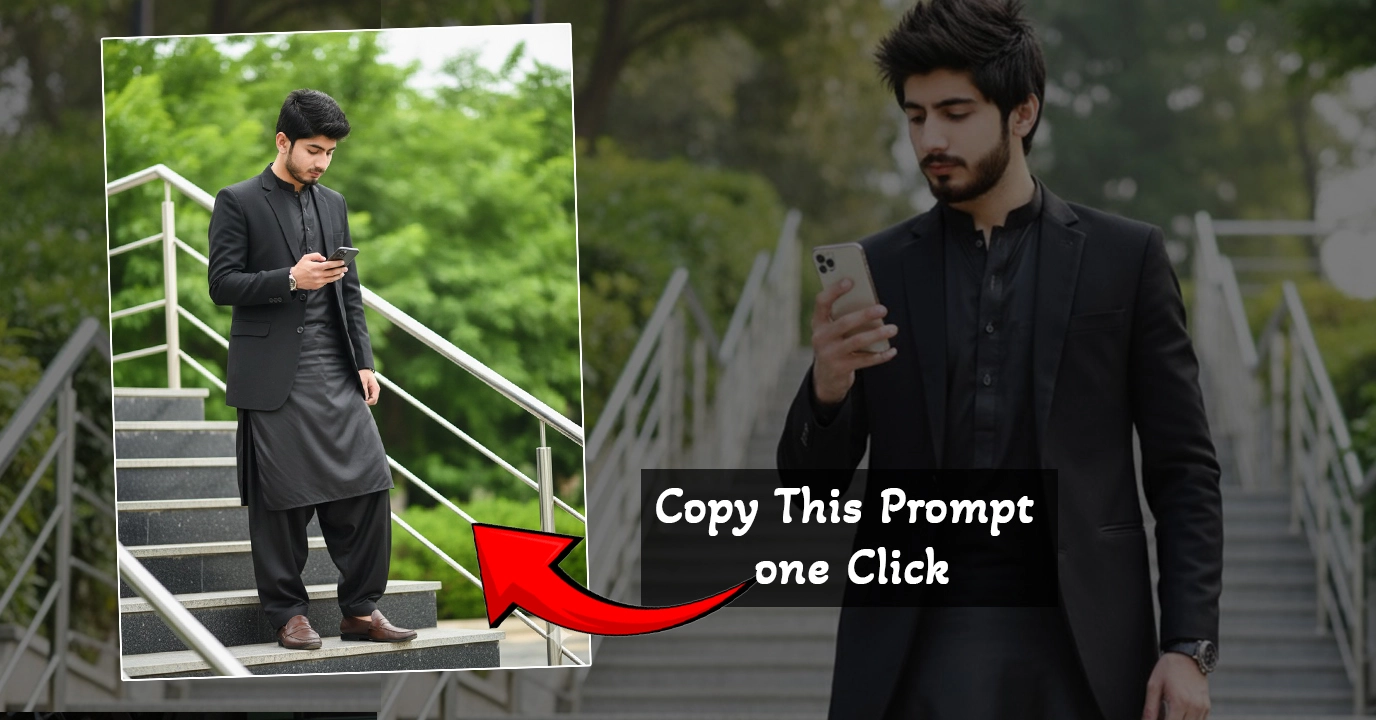
Use my face and create a pic A young man with same hair, wearing black silk shalwar gameez and wear black blazer coat on qameez and brown loafers stands on a modern outdoor staircase with silver railings. He is holding Mobile in his right hand and looking mobile. The background features lush green foliage suggesting an outdoor park or garden setting. The lighting is bright and natural, highlighting the textures of his clothing and the details of the staircase don’t change the face
After pasting the prompt, tap on the arrow button. The app will take just a few seconds to generate a stylish, AI-enhanced version of your photo.
And boom! The first photo is ready — fully stylish, detailed, and eye-catching.
Step 3: Create Your Second Photo with Color Changes
To make another variation of your photo, repeat the same steps:
- Tap + icon.
- Open Gallery.
- Select the same picture.
This time, you only need to change one thing — the color in the prompt.
The first image was in black. Now change the color value to green in the prompt.
Tap the arrow again, and within seconds, the new version will be ready. You’ll clearly see how the face style and color tone change beautifully.
Step 4: Create the Third Image with a New Style
Now repeat the process again to create a third stylish version:
- Select the same base photo.
- Paste the new “Gemini-style” prompt.
- Change the sky color from the prompt and set it to red.
Tap the arrow and wait a few seconds…
And yes — your third photo is also ready! Each version has unique tones, colors, and a cool AI-styled effect.
Step 5: The Main Secret — Enhance Photos Using Remini
This is the most important part of the tutorial. You’ve already created your AI-styled images — now it’s time to make them look beautiful, sharp, and HD using Remini.
Open the Remini app, and here’s what to do:
- Select your photo.
- Tap on the Enhance option.
Remini will automatically enhance your photo in just a few seconds. It brightens the face, sharpens the details, upgrades the color, and gives a premium-quality final output.
Once the process finishes, your picture will be completely transformed — smoother skin, better lighting, and overall a gorgeous HD edit.
Your Final Results
The final edited photos look stunning — changed colors, improved details, and a pro-level finish. You can now use these edits anywhere you want:
- Instagram Stories
- Facebook Profile
- TikTok Post
- Reels or Shorts Cover
If you love aesthetic and AI-generated photos, this method is perfect for you!
Helpful External Resources
Final Words
So guys, this was the full step-by-step tutorial on creating stylish AI photos using Je app and enhancing them with Remini. If you enjoyed this guide, don’t forget to like the video and subscribe to the channel for more editing hacks and AI tricks.
Let me know in the comments which edit you liked the most!

📢 Join Our WhatsApp Channel
Get daily AI photo editing prompts, tools, and tips directly on your phone.
Join Now on WhatsApp 🚀