Edit Trending Instagram Reels in Just One Click Using CPK App
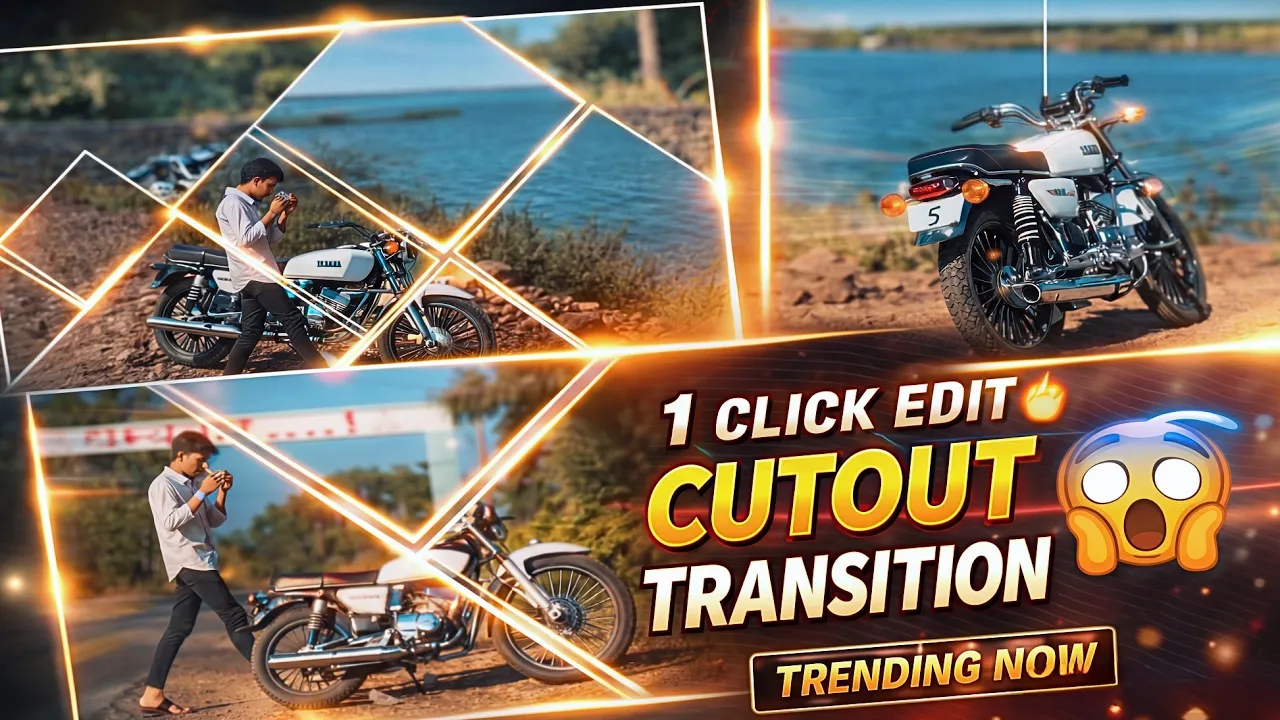
So guys, first of all, take a look at this trending Instagram reel. The best part is that you can edit reels like this in just one click. Yes, you heard that right. You only need to use the CPK (CapCut) application and simply replace your photos and videos inside a ready-made template.
This type of reel is currently trending heavily on Instagram, and creators are getting amazing reach without doing complex editing. In this blog post, I’ll show you step by step how you can create the same trending reel easily, even if you’re a beginner.
What You Need Before Starting
Before we start editing, there are a few important things you need to do:
- A smartphone (Android or iPhone)
- A working VPN connection
- The CapCut / CPK application
- Your photos and video clips ready
Important: First of all, connect any VPN on your phone. This step is important because some CapCut templates may not appear without a VPN.
You can use free VPN apps available on the Play Store or App Store, such as
1.1.1.1 VPN or
Turbo VPN.
Open CapCut (CPK) Application
After connecting the VPN, open the CapCut (also called CPK) application on your phone.
If you don’t have it installed yet, you can download it from here:
Go to the Template Section
Once CapCut is open, you’ll see multiple options on the home screen. From here:
- Tap on the “Template” option
- Now long-press on the top area
- You will see two options appear
- Select the option that opens the search bar
Create Video
This search bar is where the magic happens.
Search for the Trending “Epic” Template
Now in the search bar, type the following keyword:
EPIC
You can also try variations like:
- Epic Template
- EP Template
As soon as you search, the Epic template will appear at the top. This is the same template that’s trending right now with amazing sound effects, cutouts, and transitions.
Open this template.
Use the Template (One-Click Editing)
After opening the template, you’ll see the “Use Template” button.
Just click on Use Template. That’s it.
This template already includes:
- Trending sound effect
- Perfect beat cuts
- Epic transitions
- Professional cutout effects
You don’t need to manually add anything.
Select and Replace Your Video Clips
Now CapCut will ask you to select your video clips.
Usually, this template requires around 5 to 6 video clips. Here’s what you need to do:
- Select your first video clip
- Tap on the same clip again
- Adjust where the clip should start
- Replace it properly
- Tap on the tick mark ✔
Repeat this process for all the clips one by one.
Take your time and make sure each clip is selected correctly.
Click on Next and Let It Load
Once all clips are selected:
- Tap on the Next button
CapCut will take a few seconds to load and process your video. After that, you’ll automatically land on the home editing screen.
The best thing is—you don’t really need to do any extra editing.
Optional: Edit More (If You Want)
If you want to customize the reel further, you can:
- Adjust lighting
- Change filters
- Modify color grading
- Change effects
For this, just tap on the “Edit More” option. This will take you to the full editing panel where you can make any changes you like.
If you’re happy with the default look, you can skip this step.
Export Settings for Ultra HD Quality
Now it’s time to export your reel.
Tap on the export option at the top and select:
- AI Ultra HD
- Resolution: 1080p
- Frame Rate: 60 FPS
These settings are perfect if you want to upload your reel on Instagram with maximum quality.
Once done, export the video.
Post on Instagram and Go Viral
Your trending reel is now ready.
Upload it on Instagram Reels and enjoy the reach. This type of content is currently performing extremely well.
You can learn more about Instagram Reels best practices from the official guide here:
Instagram Content Creation Guide
Final Words
So guys, we’ll meet again in the next video with more amazing editing tricks like this.
If you’re new to the channel, don’t forget to subscribe and stay connected. Keep creating, keep editing, and keep growing on Instagram.
See you in the next one 🚀

📢 Join Our WhatsApp Channel
Get daily AI photo editing prompts, tools, and tips directly on your phone.
Join Now on WhatsApp 🚀