
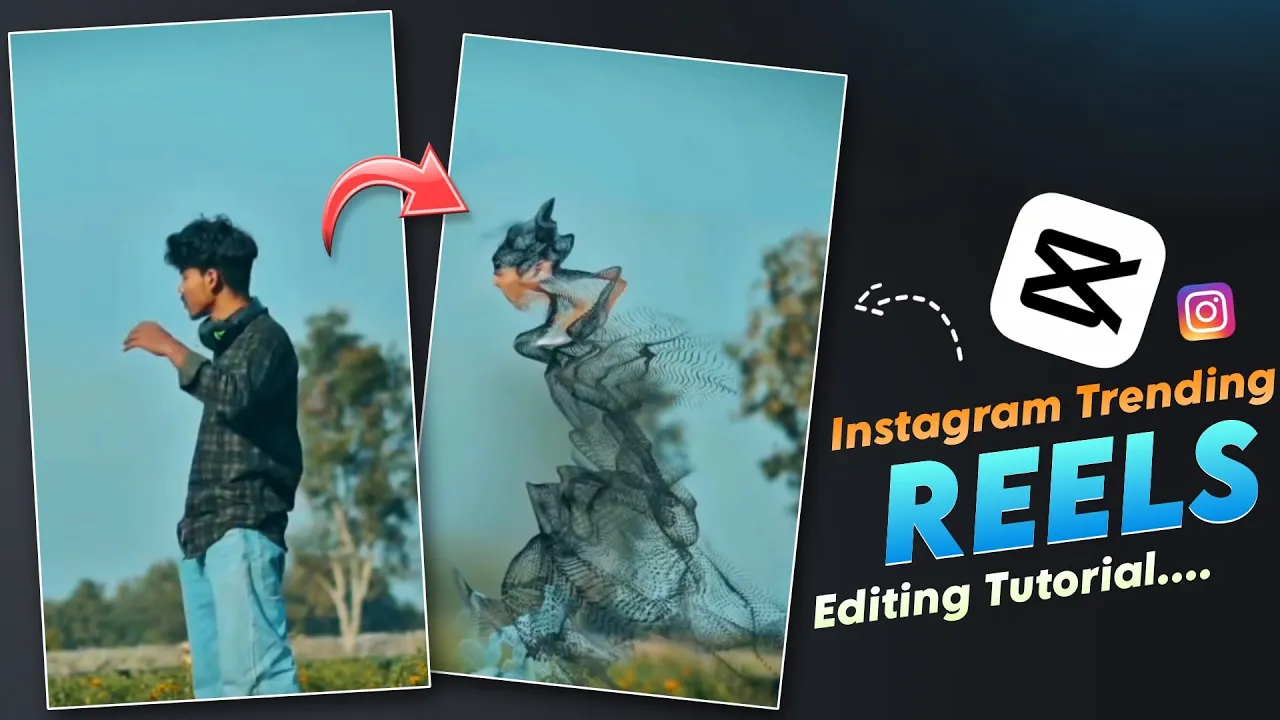
How to Edit a Viral TikTok & Instagram Video Using CapCut (Step-by-Step Guide)
Hi friends! How are you all doing? I hope everyone is doing very well. Recently, we have been seeing this type of video going massively viral on social media—especially on TikTok and Instagram. The amazing thing is that people who are uploading this video are getting their content pushed to the For You page on TikTok and the Explore page on Instagram.
If you edit your video in this style, you can also make your content go viral very easily on TikTok and Instagram. So in today’s blog post, I’m going to show you how to edit this viral video using CapCut. The best part is—you can do this editing in just one click.
I’ll explain the complete process step by step. I request you to read the full post carefully so you don’t miss any important steps. And if you find this tutorial helpful, don’t forget to like, share, and subscribe to the channel.
App Required for Editing
This editing process is extremely easy. We will do everything using the CapCut app.
- Go to the Google Play Store or Apple App Store
- Search for CapCut and install it
- If CapCut is already installed, make sure to update it to the latest version
Important: If you are not using the latest version of CapCut, you won’t be able to access this new viral effect.
You can download CapCut from here:
Step 1: Open CapCut and Add Your Video
After updating CapCut, open the app and click on New Project. Select a normal video from your gallery and tap on Add.
This will be your base video, which we’ll convert into a trending viral edit.
Step 2: Add the Viral Music
First, we need to add the viral music.
- Go to my TikTok profile
- Download the video that contains the viral music
- Come back to CapCut
- Tap on Audio → Extract
- Select the downloaded TikTok video
The music will now be extracted and added to your project.
Step 3: Cut the Music and Video
Once the music is added, you’ll notice the beats. At first, the music is low and then suddenly becomes high.
- Move the timeline to the point where the beat goes high
- Split the video
- Delete the unnecessary part
After deleting, go to the end of the video.
Step 4: Freeze the Frame
Now we’ll take a screenshot using CapCut’s freeze tool.
- Tap on the video layer
- Scroll the bottom options
- Click on Freeze
This will add a frozen frame (screenshot) at the end of the video. You can adjust its size later.
Step 5: Apply the Viral CapCut Effect
Now comes the most important part—the viral effect.
- Move the frozen photo to the beginning
- Tap on Effects
- Go to Video Effects
- Tap on the Search icon
- Type “Into”
You’ll see the new trending effect in the first or second position. Select it and tap on the checkmark.
Step 6: Adjust the Effect Settings
After applying the effect:
- Tap on the effect layer
- Go to Adjust
- Set the Speed to Zero
- Adjust the effect timing slightly forward
Trim the effect so it matches the beat drop perfectly.
Now your video editing is almost complete!
Step 7: Color Grading and Filters (Optional)
If you want to enhance your video further:
- Go to Adjust to tweak brightness, contrast, and colors
- Or go to Filters and apply any filter with one click
This step is optional but helps your video look more professional.
Step 8: Export Settings (Very Important)
Before exporting, make sure you choose the correct resolution:
- Select 1080p (Recommended for TikTok & Instagram)
Do not export in 4K if you plan to upload on TikTok or Instagram, because these platforms compress the video and reduce quality.
After selecting 1080p, tap on Export. Your video will be saved to your phone.
Final Words
So friends, as you can see, with just one click, we edited a trending viral video using CapCut. I hope you learned how to create this viral edit easily.
If you liked this tutorial, don’t forget to like the video, subscribe to the channel, and share it with your friends. We’ll meet again in the next post with something new.
Until then, stay safe, stay healthy.
Helpful Resources:

📢 Join Our WhatsApp Channel
Get daily AI photo editing prompts, tools, and tips directly on your phone.
Join Now on WhatsApp 🚀