How to Create Viral “Object Talk” Videos Using AI (Step-by-Step Guide)
Fun, simple videos where everyday objects explain how they work are getting millions of views across YouTube Shorts, Instagram Reels, and TikTok. These videos are easy to watch, highly shareable, and surprisingly addictive. The best part? You can create them yourself using AI—even if you have zero design or animation skills.
In this guide, I’ll show you exactly how to make these Object Talk videos step by step, using ChatGPT and OpenArt, while keeping the same fun, conversational tone that performs so well on short-form platforms.
What Are “Object Talk” Videos?
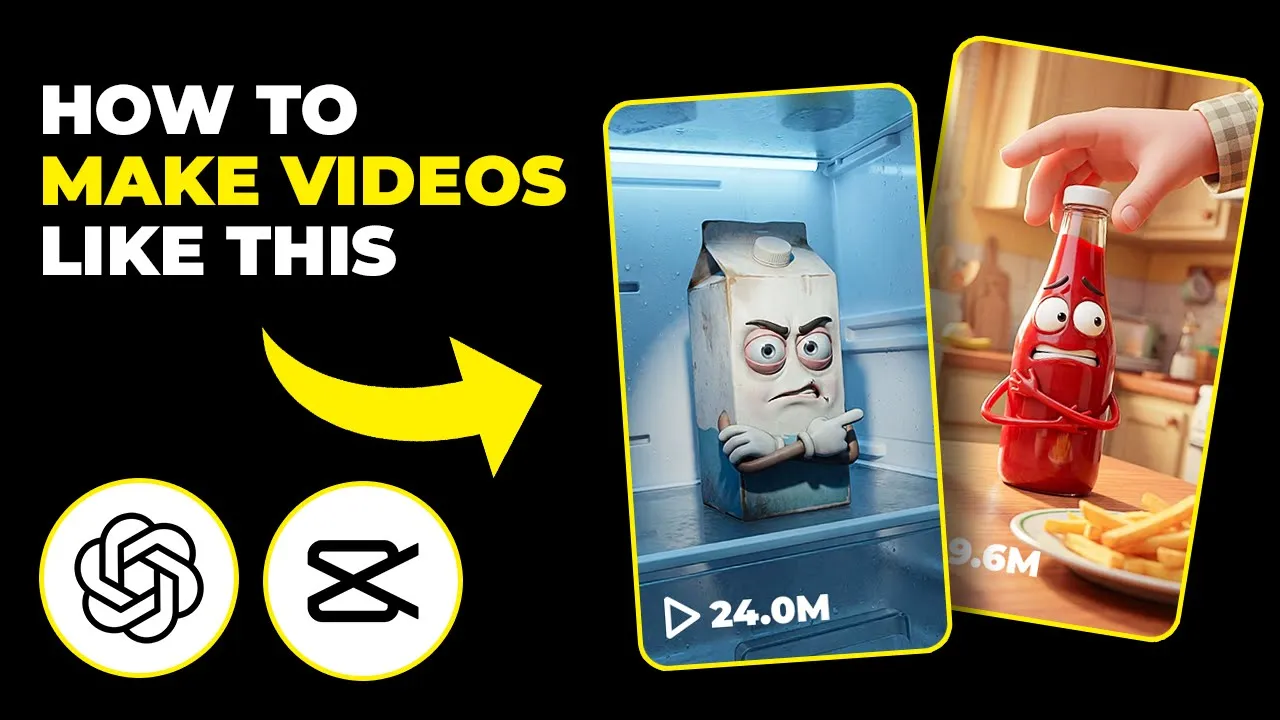
Object Talk videos are short animated clips where an everyday object—like a phone, ketchup bottle, or battery—“talks” and explains how it works or reacts humorously to human behavior.
Think of lines like:
- “Buzz, swipe, scroll, repeat. I never sleep.”
- “My battery drains like your attention span.”
- “You want freshness? Quit warming my whole neighborhood.”
This mix of humor, relatability, and clean visuals is exactly why these videos rack up massive engagement.
Step 1: Use ChatGPT’s “Object Talk” GPT
Start by opening ChatGPT. Once inside, click on Explore GPTs and search for Object Talk. Select that GPT model and click Start Chat.
Now simply type the object you want your video to be about.
Example: Type Phone.
The Object Talk GPT will instantly generate:
- ✅ Five text-to-image prompts
- ✅ Five short scripts
The first prompt is the main prompt. It focuses on your main object (like the phone). The other four prompts are for related objects, such as:
- Battery
- Notification bar
- Screen
- Charging cable
This structure is perfect for creating multiple short clips from one idea.
Step 2: Generate Images Using OpenArt
Once ChatGPT generates the prompts, copy the main prompt. The GPT will also give you a direct link—click it to open OpenArt.
Inside OpenArt, follow these steps:
- Go to the Image tab
- Click Create Image
- Select the Nano Banana Pro model
- Paste your copied prompt
- Set the size to 916 (perfect for Shorts)
- Set the resolution to 2K
- Click Create
The results look surprisingly clean and professional. The characters are expressive, colorful, and ideal for short-form content.
Repeat the same process for the other four prompts generated by the GPT.
Example: Using Food Instead of Tech
This method works for literally anything—even food.
For example, type ketchup into the Object Talk GPT.
You’ll get:
- Main prompt about ketchup
- Related prompts like sauce, bottle, or cap
Follow the same OpenArt steps, and you’ll have visuals of a ketchup bottle ready to “talk” on screen. Simple, repeatable, and scalable.
Food Name=?
You are an expert text-to-video prompt engineer. When I give a food name (or if no valid food name is provided, intelligently choose a common healthy food yourself), generate ONE ready-to-use text-to-video prompt. If the given food is unhealthy (junk, processed, sugary, fried), then clearly show and explain its NEGATIVE effect on the human body instead of benefits. The food must be fully anthropomorphic with human eyes, lips, hands, and legs, bright and attractive for kids and adults (or dull/greasy look for unhealthy food), with accurate Hindi lip-sync.Automatically decide the most relevant human body part, the real problem (benefit or damage), the correct action, and an appropriate tool/prop (cleaning→wiper/brush, breaking→hammer, removing→vacuum, protecting→shield, strengthening→glow/support, damaging→crack/fire/dark smoke). The scene must be inside the human body at the exact organ or system affected, shown in a realistic medical environment. The food must physically use the selected tool with its hands; if something is being cleaned or removed, it MUST visibly break apart and completely disappear during the animation. Dialogue must be a single short first-person Hindi line in this exact format: “Main [FOOD NAME] hoon, main aapka [PROBLEM] [ACTION] karta hoon.” (for unhealthy food, the line should clearly state harm). The camera must remain completely static with no pan, zoom, tilt, or shake. Style should be high-quality 3D medical + Pixar-style animation with cinematic lighting, vertical 9:16 format, no on-screen text, no watermark. Output only the final paste-ready text-to-video prompt and nothing else. Now generate the prompt for this input:
ChatGPT
Step 3: Turn Images into Talking Videos
Now it’s time to animate your images.
Back in OpenArt:
- Copy the script ChatGPT generated
- Click on the Image to Video button at the top
- Select the Cling 2.6 model
- In the input box, type something like:
“The cartoon face is saying:” and paste the script right after it - Set the duration to 10 seconds
Create Video
Click generate, and within moments, you’ll have a short animated clip where your object talks naturally.
Real Script Examples That Work
Here are some actual lines that perform extremely well:
- “Stop sniff testing me like I’m guilty.”
- “I’m fine until you leave the door open for a full minute.”
- “5% isn’t confidence, it’s fear.”
- “Every scroll is a gamble. And you never stop.”
- “My battery drains like your attention span.”
- “I still have to wake you up tomorrow.”
These scripts feel personal, sarcastic, and relatable—which is exactly why viewers watch till the end.
Where to Publish These Videos
Once your videos are ready, upload them to:
- YouTube Shorts
- Instagram Reels
- TikTok
Post consistently, test different objects, and reuse the same workflow daily. One idea can easily turn into 5–10 short videos.
Final Thoughts
This AI-powered Object Talk format is one of the easiest ways to create viral short-form content right now. You don’t need a camera, voiceover skills, or editing experience. With ChatGPT handling scripts and OpenArt generating visuals and animations, everything becomes plug-and-play.
All the tools mentioned in this guide are linked above. Try one object today, post your first video, and scale from there.
If you found this guide helpful, don’t forget to like, share, and subscribe.

📢 Join Our WhatsApp Channel
Get daily AI photo editing prompts, tools, and tips directly on your phone.
Join Now on WhatsApp 🚀